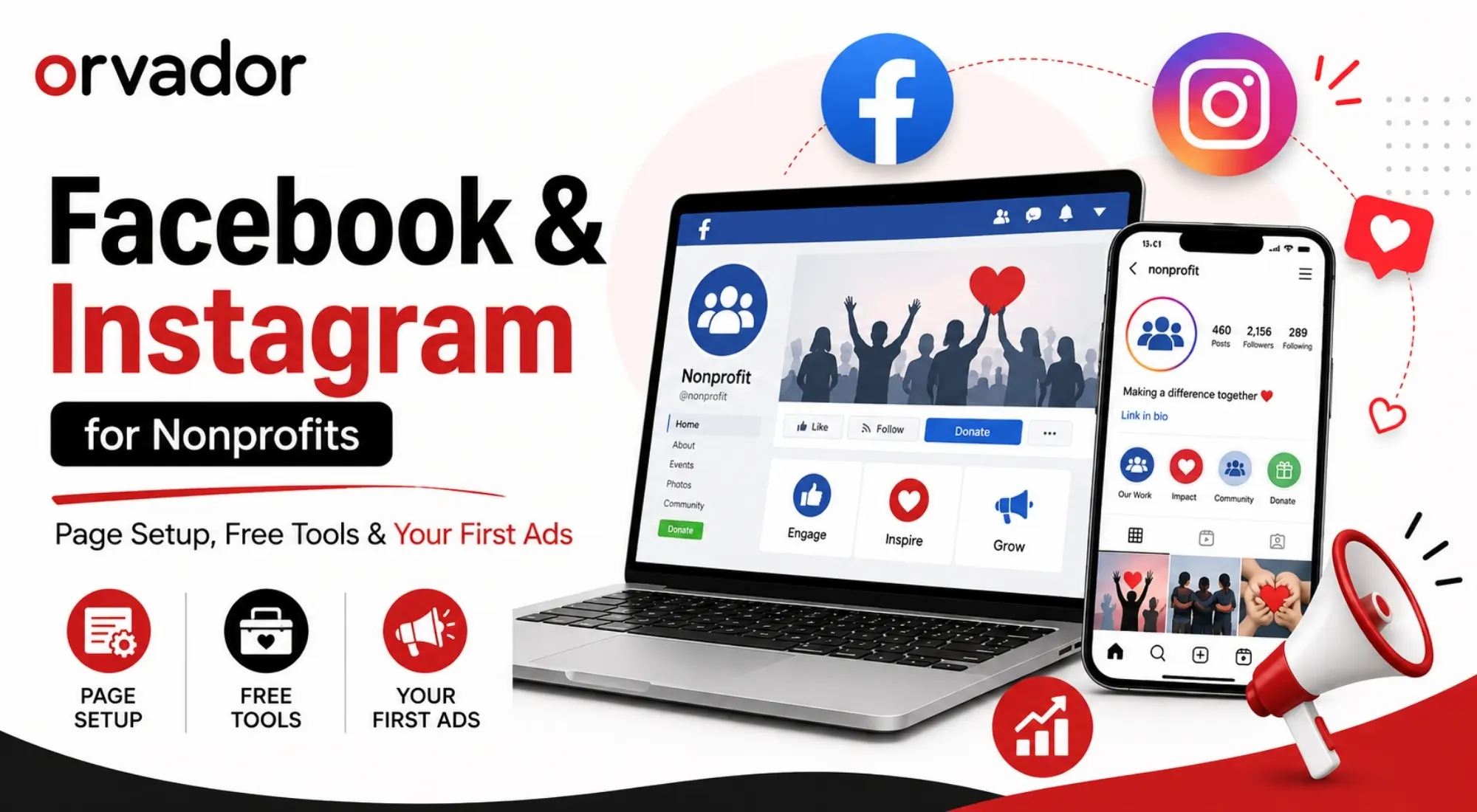
TL;DR: Creating a Facebook Page for your nonprofit can be relatively quick. The bigger opportunity comes from setting up your organization correctly and checking eligibility for Meta’s nonprofit benefits, including donation tools and advertising features. This guide covers the whole process — from setting up your nonprofit Facebook Page and getting verified to building a strong Instagram presence and putting your first $100 into Facebook ads. You’ll also learn how to choose the right campaign objective so your limited ad budget works toward your nonprofit’s goals.
1. Setting Up a Nonprofit Facebook Page (Step by Step)
Setting up a nonprofit Facebook Page is fairly simple, but the choices you make at the beginning can make a big difference later. If you want access to Meta’s nonprofit-specific tools and features, it’s worth getting the basics right from the start.
Step 1: Create the Page, not a personal profile. Go to Facebook > Create > Page. Choose the category that best describes your organization, such as “Nonprofit Organization,” where available. This helps clearly identify the purpose of your Page when you apply for relevant nonprofit features.
Step 2: Use your legal registered name. Meta may compare information associated with your organization against its verification requirements and nonprofit records. Keep your organization name and registration information consistent across your Page and supporting documentation. Name inconsistencies can create problems during verification.
Step 3: Complete your profile fully. Add your mission statement in the “About” section, a logo as your profile photo, and a cover image that reflects your current work or campaign. A complete profile also gives visitors the information they need to understand who you are and what your organization does.
Step 4: Add admins carefully. Assign more than one trusted administrator so account access never depends on one person. Enable two-factor authentication for administrators and review account permissions regularly.
Step 5: Claim your custom username. Once your Page is eligible, choose a simple username that closely matches your organization’s name. A consistent username makes it easier for supporters to find and recognize your nonprofit across social channels.
2. Getting Verified & Accessing Meta’s Nonprofit Tools
This is the step many nonprofits overlook. Facebook for nonprofits isn’t simply a Page category; eligibility for Meta’s nonprofit products and fundraising features can depend on your organization’s location, verification status, and compliance with Meta’s requirements.
To get started, review Meta’s current nonprofit eligibility and verification process for your country. Depending on your location, Meta may use nonprofit partners or verification services to confirm an organization’s status.
Depending on eligibility and availability, nonprofit organizations may be able to access features such as:
- Donation tools that allow supporters to contribute through eligible Meta fundraising features
- Fundraiser tools, where available, allowing supporters to raise money for eligible organizations
- Meta Business Suite, which can help manage Facebook and Instagram content, messages, and other business assets
- Nonprofit advertising benefits, where available and where the organization meets Meta’s eligibility requirements
Verification requirements, availability, processing times, and platform features can change by country and over time, so check the current Meta requirements before submitting an application. Keep your registration documents and proof of nonprofit status ready if they are requested.
3. Instagram for Nonprofits: Profile, Highlights, Link Strategy
Instagram for nonprofits works best as a visual extension of your Facebook presence, not simply as a duplicate feed. After your Facebook Page is set up, connect your Instagram professional account through Meta’s tools where appropriate. This makes it easier to manage content across both platforms and coordinate your advertising activity.
A few setup essentials:
- Switch to a professional account. Choose the account type that best fits your organization’s needs and the features available in your region.
- Use Highlights strategically. Create dedicated Highlight covers for “Our Impact,” “Ways to Give,” “Volunteer,” and “In the News.” This gives new visitors a quick way to understand your organization.
- Solve the link problem. Instagram allows links in your profile, so use them strategically to direct visitors to your donation page, current campaign, volunteer signup, or another important destination.
- Use fundraising features where eligible. If donation or fundraising features are available to your organization and region, use them to make giving easier for supporters.
Cross-posting from Facebook to Instagram can save time, but adapt your captions and creative to each platform. Instagram audiences often respond well to concise visual storytelling, while Facebook can accommodate more context when the subject requires it.
4. Your First $100 in Meta Ads: Campaign Setup for Donations
Running Facebook ads for nonprofits for the first time doesn’t require a huge budget. It requires a clear objective, appropriate tracking, and a focused test.
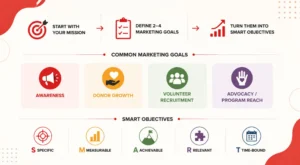
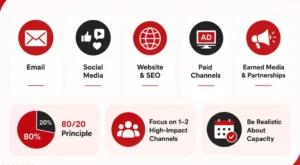
This is one part of a broader nonprofit marketing plan, where your social channels, content, paid campaigns, email, SEO, and fundraising activity should work toward the same goals.
Here’s a simple $100 test campaign structure:
- Choose the objective based on your actual goal. If the goal is donations, use the Meta campaign objective and conversion setup that best matches the action you want people to take. Don’t automatically choose Awareness simply because you’re a nonprofit.
- Set up tracking before spending. Install the Meta Pixel and, where appropriate, configure the Conversions API on your website before launching a conversion-focused campaign. This gives you better visibility into actions taken after someone interacts with your ad.
- Start with audiences you can realistically reach. If you have enough eligible first-party data, consider retargeting website visitors or engaging previous supporters before expanding to broader audiences. Make sure any audience data you use complies with applicable privacy requirements and Meta’s policies.
- Run a focused creative test. Instead of testing too many variables at once, start with one ad set and two creative variations where your budget and account setup allow it. For example, test a photo-led ad against a short 15–30 second video while keeping the core message consistent.
- Give the campaign enough time to produce useful data. Don’t make major changes immediately after launch. Allow enough time and conversions to assess performance, while monitoring spend, tracking accuracy, and campaign delivery.
A $100 test won’t necessarily generate a large number of donations, but it can help you understand which creative, audience, and message combinations deserve further testing. Treat the first campaign as a learning exercise rather than assuming that one small test will establish a long-term winner.
5. Common Meta Account Issues Nonprofits Hit (and Fixes)
- Page or ad account restricted. Review the notification and account status in Meta Business Suite or the relevant Meta support area. Check whether the restriction relates to advertising policies, account security, payment issues, or another policy requirement before submitting an appeal.
- Verification rejected. Re-check your organization’s legal information and supporting documents. Make sure the information submitted during verification is accurate and consistent.
- Fundraising features unavailable. Availability can depend on your country, organization type, eligibility, and Meta’s current product requirements. Review the relevant nonprofit and fundraising requirements rather than assuming that every verified organization receives every feature.
- Ad account locked over payment verification. Check the billing information, payment method, administrator permissions, and account security settings. Avoid making unnecessary account changes while an active campaign is being reviewed.
- Low organic reach despite an active Page. Review the quality, relevance, consistency, and engagement of your content before assuming that paid advertising is the only solution. Use insights to identify which topics and formats are generating meaningful interactions.
For a broader look at how social media fits into an overall nonprofit growth strategy, see Nonprofit Marketing in 2026 and its discussion of social media, paid advertising, SEO, email, and donor acquisition.
Need Meta Ads Managed? Setting up the account is one thing; running campaigns that consistently generate useful results is another. If you’d rather hand off strategy, creative testing, and budget optimization, talk to our paid team about managing your Facebook and Instagram ads.
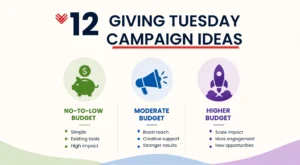
Related reading: If your campaign is connected to a year-end giving push, explore our guide to GivingTuesday ideas for nonprofits for campaign concepts, social fundraising ideas, and a six-week planning timeline.