Nonprofits often need to create social graphics, fundraising campaigns, event materials, donor communications, and impact reports without a dedicated design team. Canva for Nonprofits gives eligible organizations access to Canva's premium tools at no cost, making it easier for small teams to create consistent branded content.
That gap can make an organization look less professional and potentially weaken the impact of its fundraising materials. Why? Because people give to organizations that look like they know what they're doing. Canva for Nonprofits closes that gap for free, and most eligible organizations still haven't applied for it. This guide walks through who qualifies, exactly how to apply, and twelve templates worth building the day your account gets approved.
Yes. Canva offers eligible registered nonprofits, NGO's, and qualifying social impact groups access to Canva Pro's premium features and team collaboration tools for one team of up to 50 users for free. If you want more seats, it's possible to obtain them at 50% off the cost of Canva Enterprise. Eligibility is at Canva's discretion and subject to country restrictions. Registered 501(c)(3) nonprofits (and equivalent charities internationally) can apply for Canva for Nonprofits and get Canva Pro's full toolkit free for a team of up to 50 people. Apply directly through Canva's nonprofit page with your IRS determination letter or local equivalent. Canva says it will generally update applicants within 72 hours once the application is submitted, although some verification cases may take longer. Once you're in, start with the twelve templates below rather than trying to build your whole brand kit in one sitting.
Is Your Nonprofit Eligible for Canva for Nonprofits?
Canva's eligibility bar is narrower than ‘we do good work,’ so it's worth checking before you spend time on the application. Canva is explicit that meeting the basic criteria doesn't guarantee approval. Applications are reviewed at Canva's discretion, so treat this as a grant you're applying for.
Likely eligible:
- Registered 501(c)(3) organisations in the US, including public charities with an educational, religious, scientific, or charitable mission
- Registered charities or nonprofit-equivalent entities in other countries where Canva runs the program (Registered nonprofit organizations in countries where Canva Nonprofits is available can apply, but eligibility and documentation requirements vary by country, with country-specific documentation rules)
- Organisations that are independent of government and not operating for commercial profit
Not eligible:
- 501(c)(4) or 501(c)(6) organisations, meaning advocacy groups, business leagues, and trade associations
- Schools, colleges, and universities
- Government bodies and political organisations
- Individuals, freelancers, and for-profit businesses, even if they support charitable causes
How to Apply for Canva for Nonprofits: Step-by-Step Guide
Once approved, the grant covers a team of up to 50 people with no monthly cost, for as long as your organisation stays eligible. If your team eventually outgrows 50 seats, Canva offers additional seats at 50% off Canva Enterprise. rather than forcing you back to full price.
Now let’s look at the steps
-
Step 1Set up your Canva account on your organisation's domain
If you already have a personal Canva account, it's worth creating a fresh one tied to your organization's email address before applying. It keeps the account cleanly owned by the org rather than by whoever happened to sign up first.
-
Step 2Go to Canva's nonprofit page and start the application
Visit canva.com/canva-for-nonprofits and click Apply. If you signed up and selected "nonprofit or charity" as your account type, Canva usually surfaces a direct application link on your homepage for the first 30 days.
-
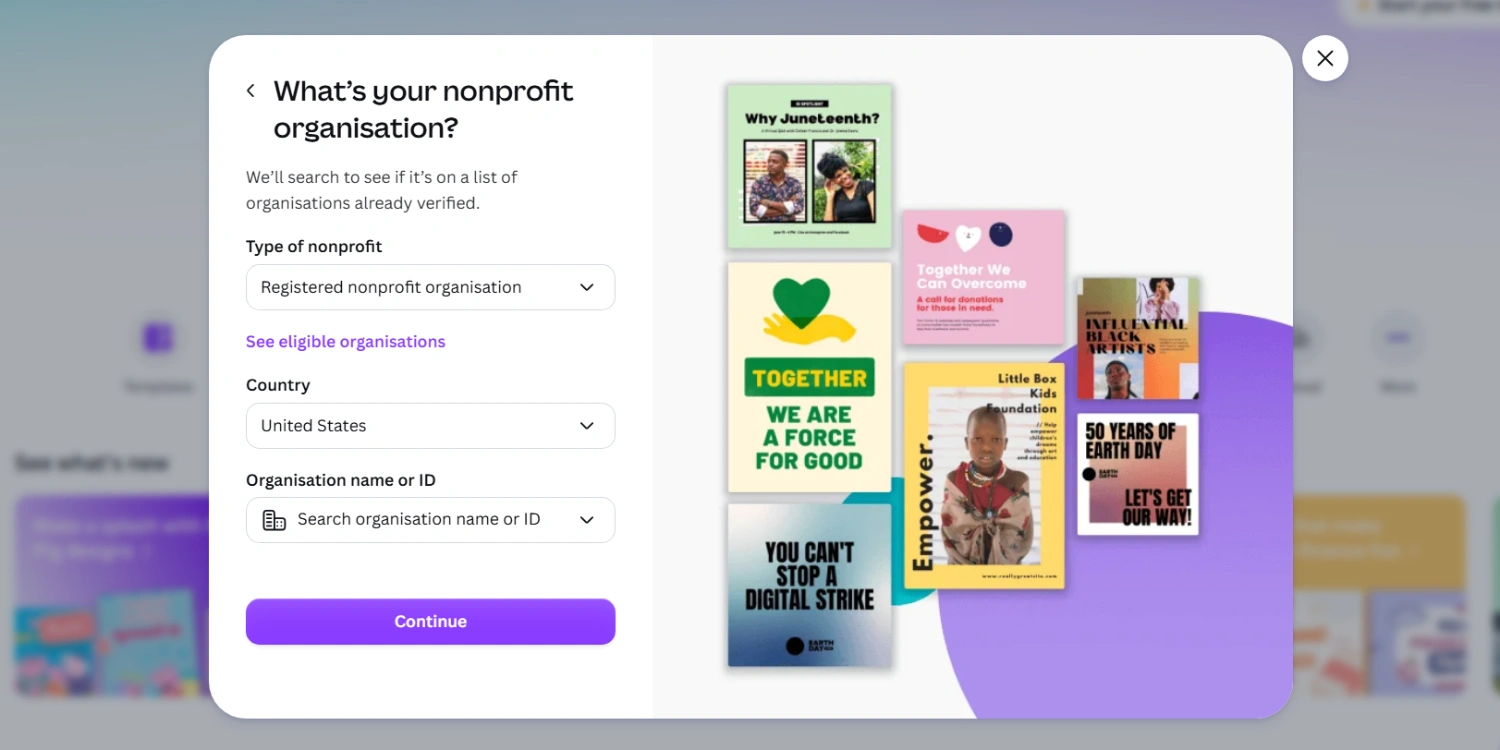
Step 3Fill in your organisation details exactly as they appear on your legal documentation
You'll enter your legal organisation name, size, country, organisation type, and a short mission description. The name on this form has to match your IRS determination letter (or local equivalent) exactly; mismatches are one of the more common reasons applications get held up.
-
Step 4Upload your documentation
For organizations outside the US, Canva may request local documentation confirming nonprofit registration and charitable status. The exact documents required depend on your country and the verification process. Canva uses verification to confirm nonprofit eligibility, and requirements vary by country. Canva currently works with Goodstack for nonprofit verification, so the documentation required can differ depending on where your organization is registered.
-
Step 5Submit and wait for review
Approval typically comes back within a few business days once documentation is in order. If you're rejected, Canva allows a reapplication with additional proof, a signed letter of affiliation, a volunteer ID, or similar documentation showing your name, role, and the organisation.
What Do You Get With Canva for Nonprofits?
It's not a stripped-down nonprofit edition. Approved organisations get the same premium tier paying customers use, including:
- The full premium template and stock photo library, instead of the limited free-tier selection
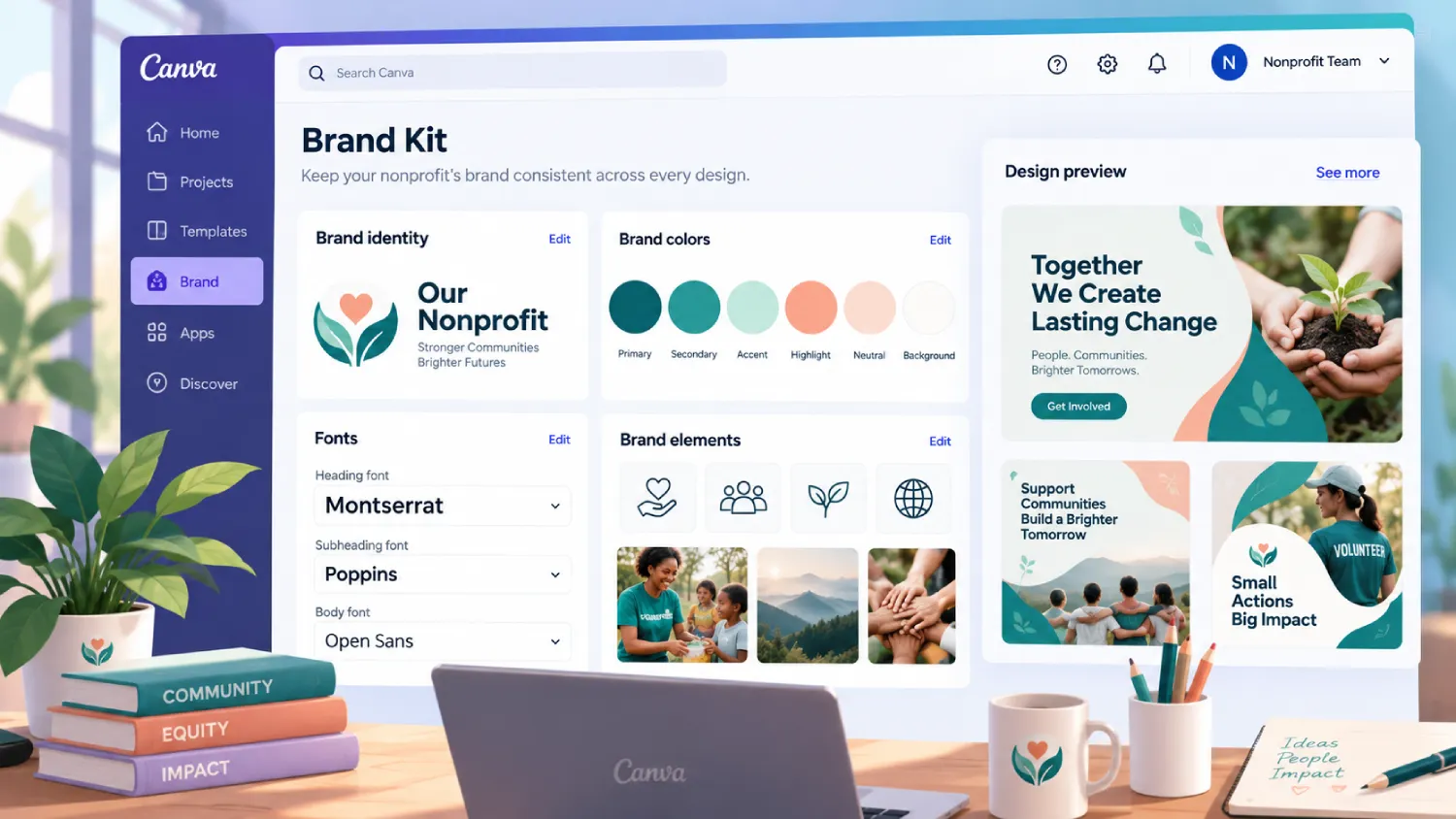
- Brand Kit tools to lock in your logo, colours, and fonts across every team member's designs
- Background remover, Magic Resize, and Canva's AI design tools
- Team folders and shared brand templates, so volunteers and staff aren't rebuilding the same flyer from scratch every campaign
- Scheduling and direct publishing to social platforms from inside Canva
Weak vs. Strong Canva Setups
Example 1 - Brand consistency
Every team member designing flyers from whatever template they personally like, in whatever colours look good that day.
One Brand Kit set up immediately after approval, with your logo, exact brand colours, and approved fonts locked in for every user on the team.
Inconsistent visuals across social posts, emails, and print materials quietly erode the sense that an organisation is well run. A locked Brand Kit means a volunteer designing an Instagram post automatically pulls the right colours without needing a design brief every time.
Example 2 - Template usage
Opening a blank canvas for every new flyer, newsletter, or social post.
Building five to six core branded templates once, then duplicating and editing them for every new campaign.
Starting from a blank page is where most of the design time (and most of the inconsistency) creeps in. A locked template turns a 45-minute design task into a 5-minute edit, which matters enormously for a team without a dedicated designer.
Example 3 - Approval workflow
Multiple people editing and publishing designs with no review step, so mistakes and off-brand posts go live before anyone catches them.
Using Canva's team folders and comment/approval features so one person reviews designs before they're marked ‘ready to publish.’
A typo in a donation-page graphic or a mismatched colour scheme on a fundraising post is a small thing individually, but it adds up to a brand that looks unmanaged. A five-minute review step catches it before donors see it.
12 Templates to Build First
Don't try to build your entire brand library in the first week. Start with these twelve; they cover the situations nonprofits run into constantly, and once they exist as branded templates, every future campaign gets faster.
-
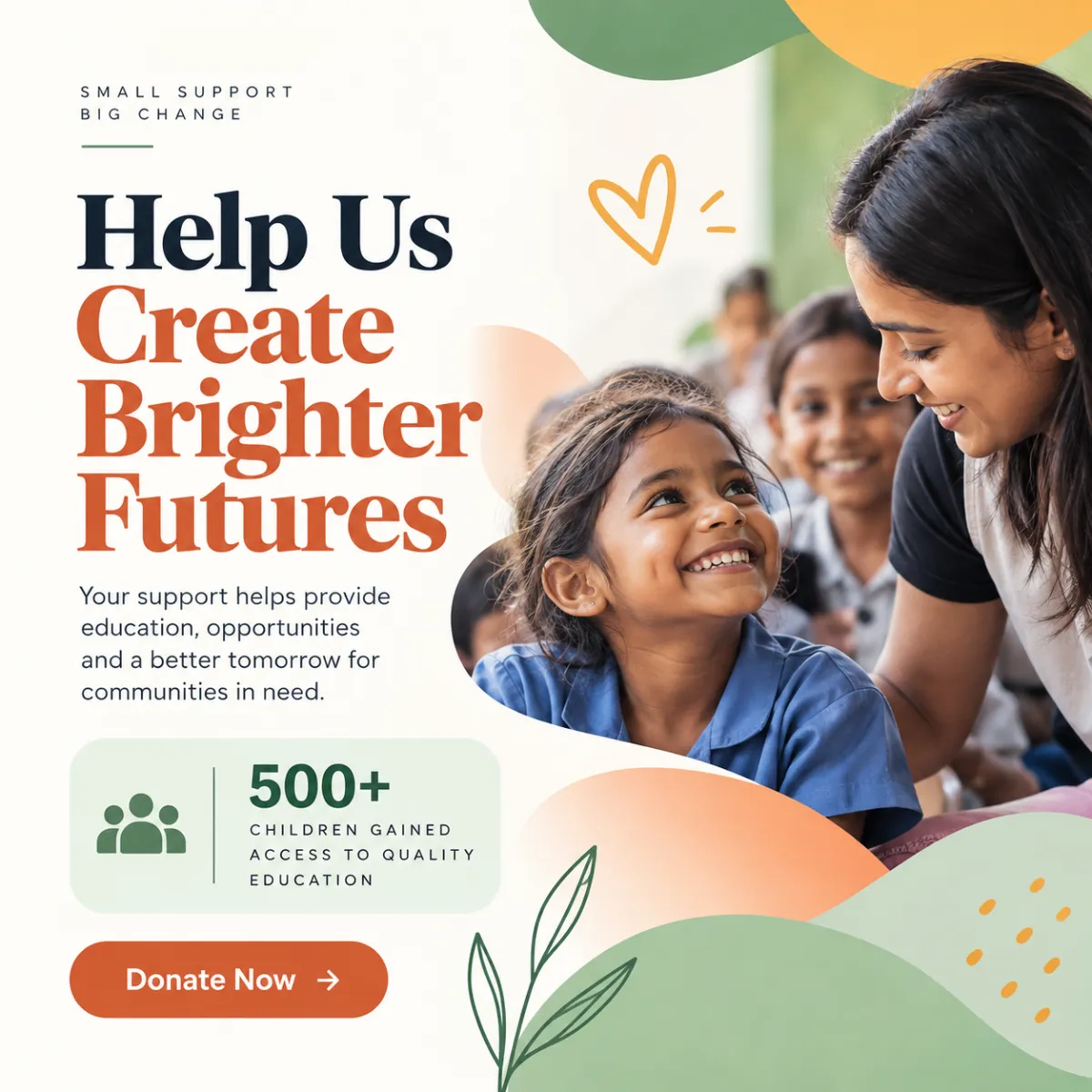
Social media donation appeal
A square or vertical post format with a clear headline, a single stat, and a donate link, built once and reused for every campaign.
-
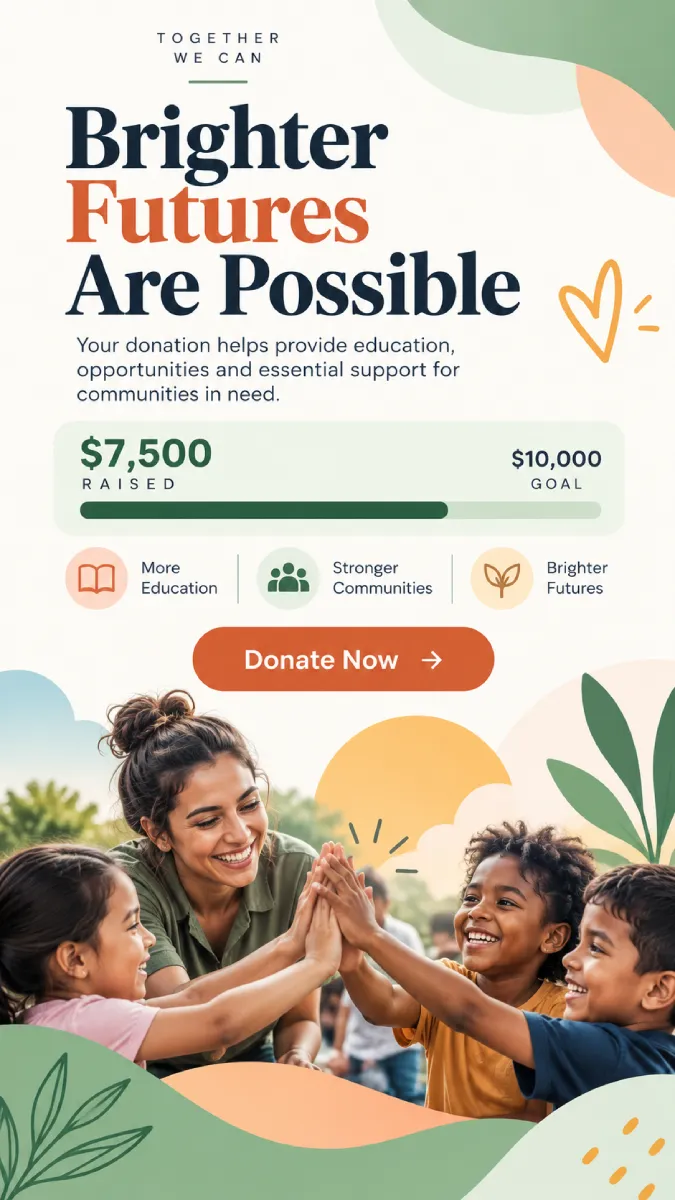
Instagram Story donation countdown
A simple template with a progress bar or countdown, since urgency posts consistently outperform static asks.
-
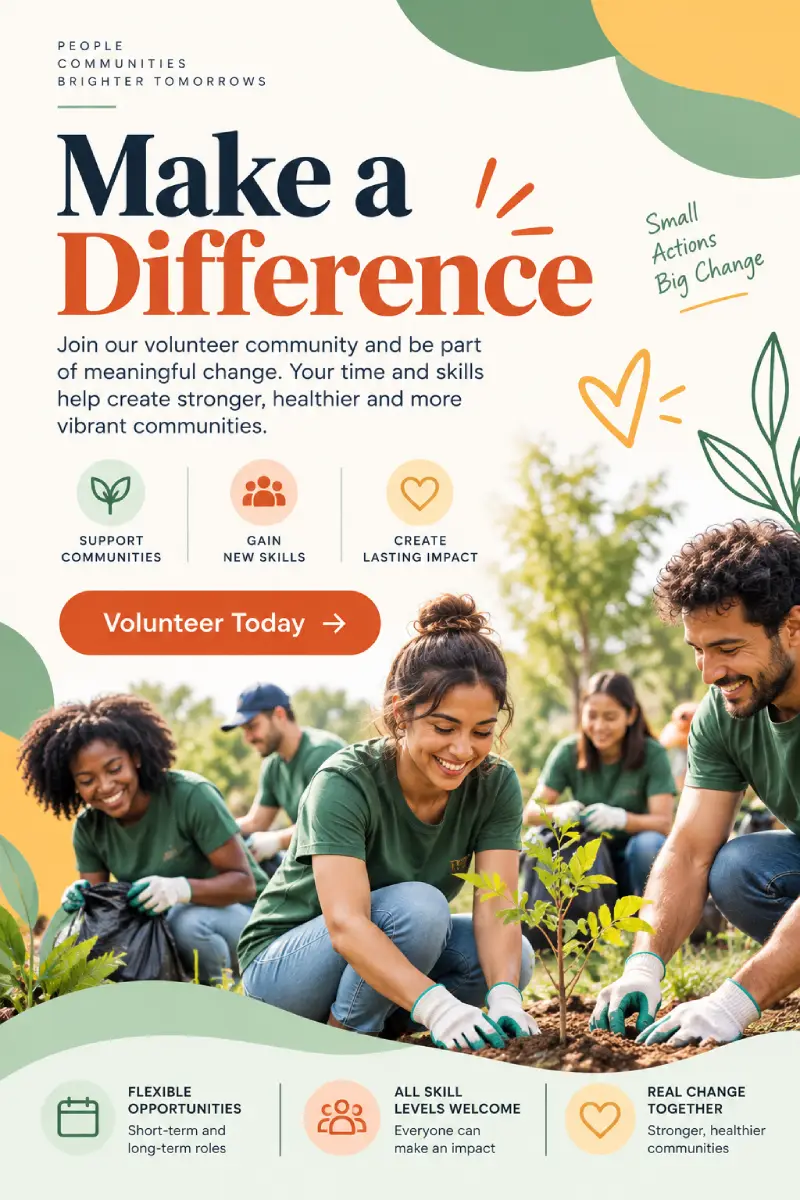
Volunteer recruitment flyer
One printable, one digital version, both pointing to the same sign-up link.
-
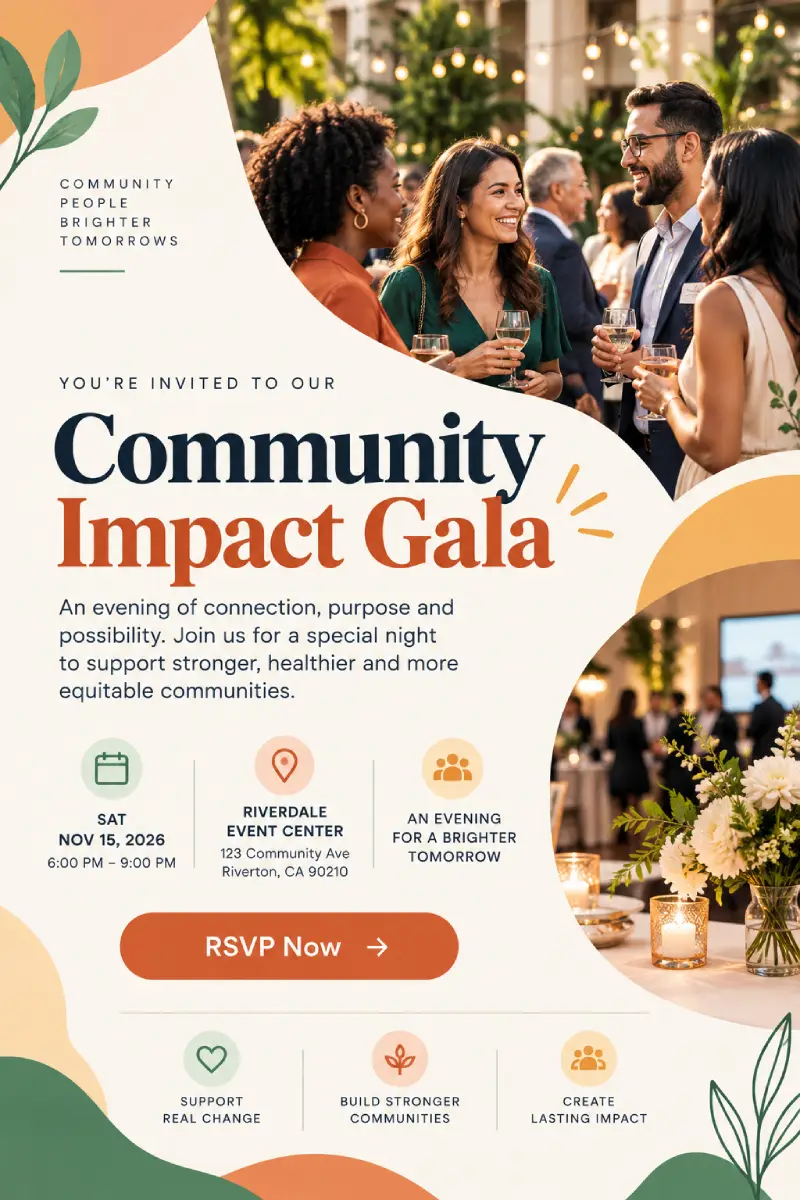
Event invitation
For galas, walks, or community events, with a version formatted for email and one for print.
-
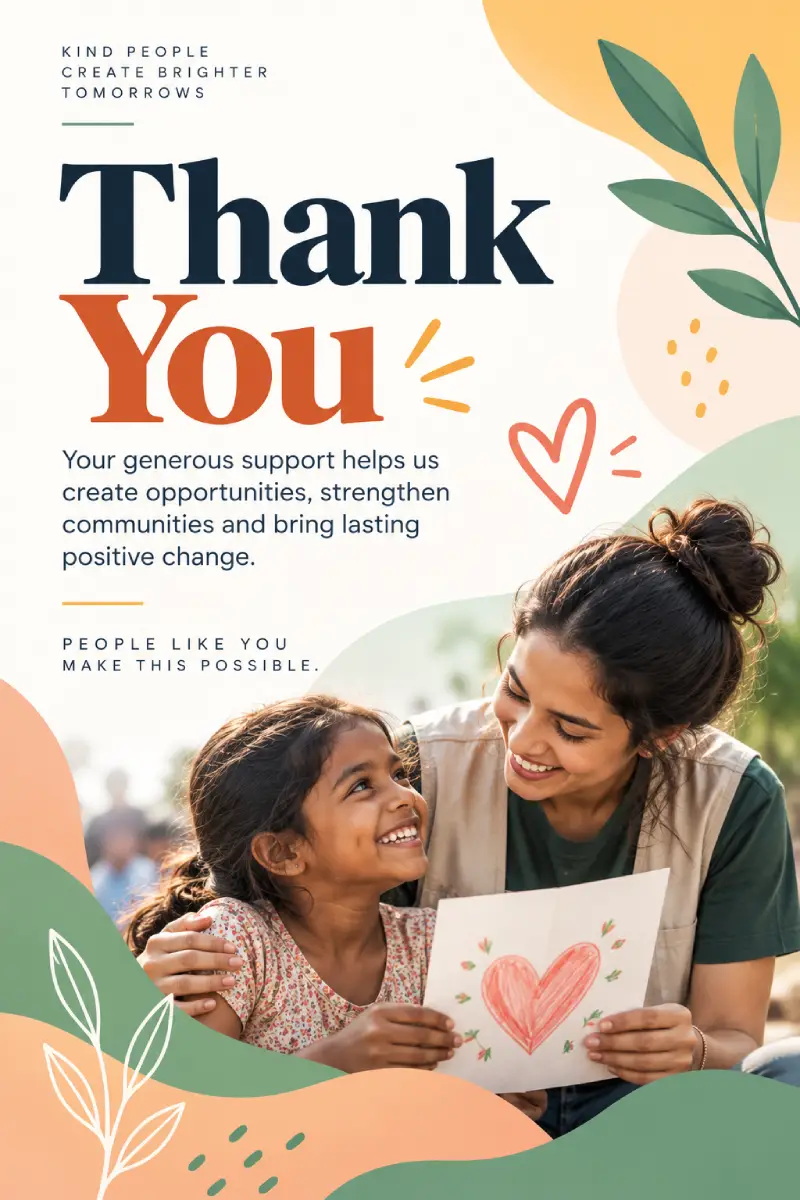
Thank-you card for donors
A short, warm template that can go out within 48 hours of a gift instead of weeks later.
-
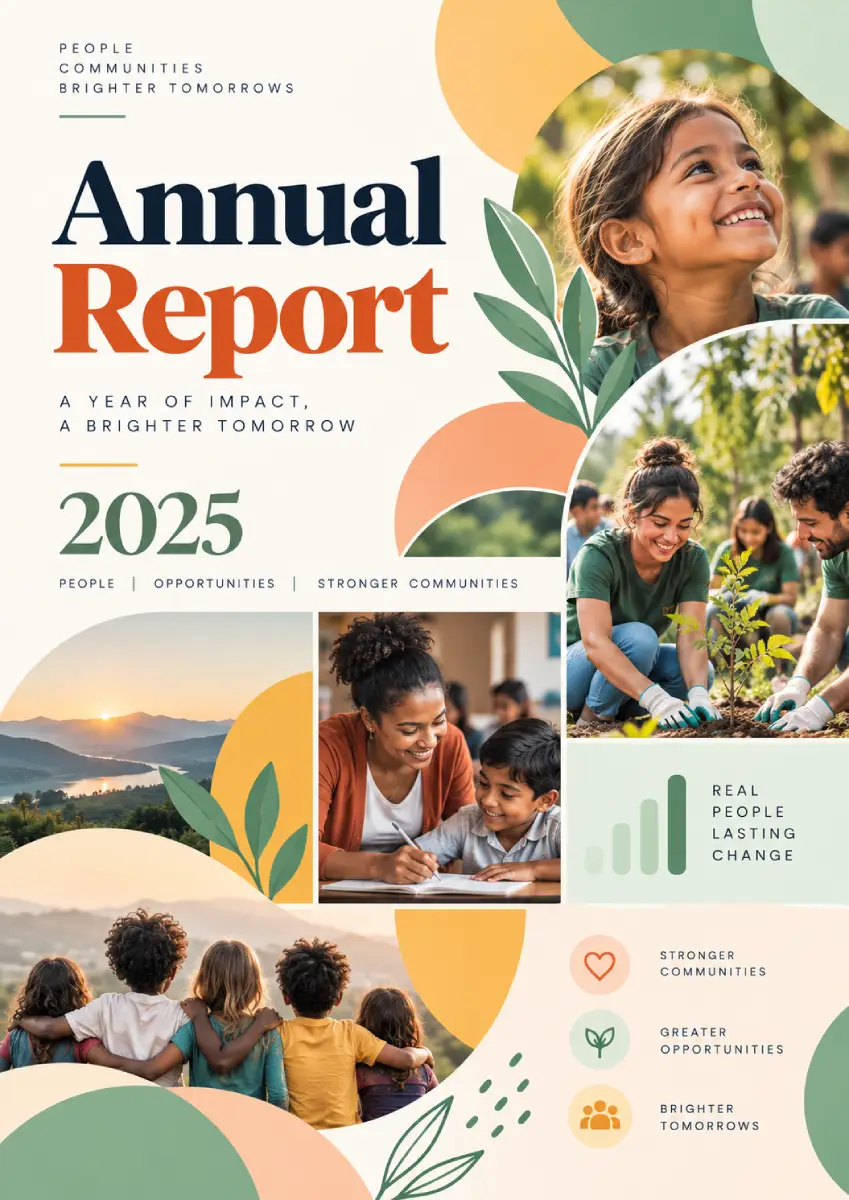
Annual report cover and section dividers
The single design most nonprofits reuse the longest, worth getting right once.
-
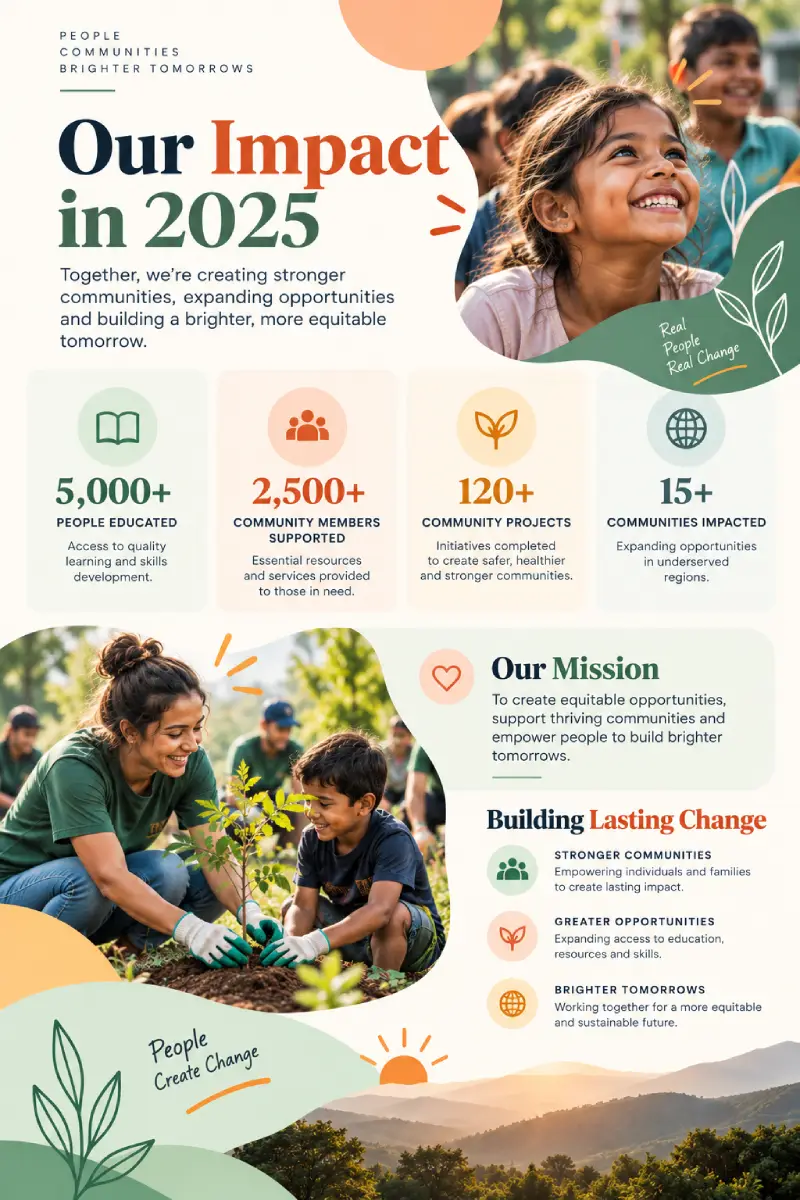
Impact one-pager
A single page with three or four key numbers, used for board meetings, grant applications, and corporate partner pitches alike.
-
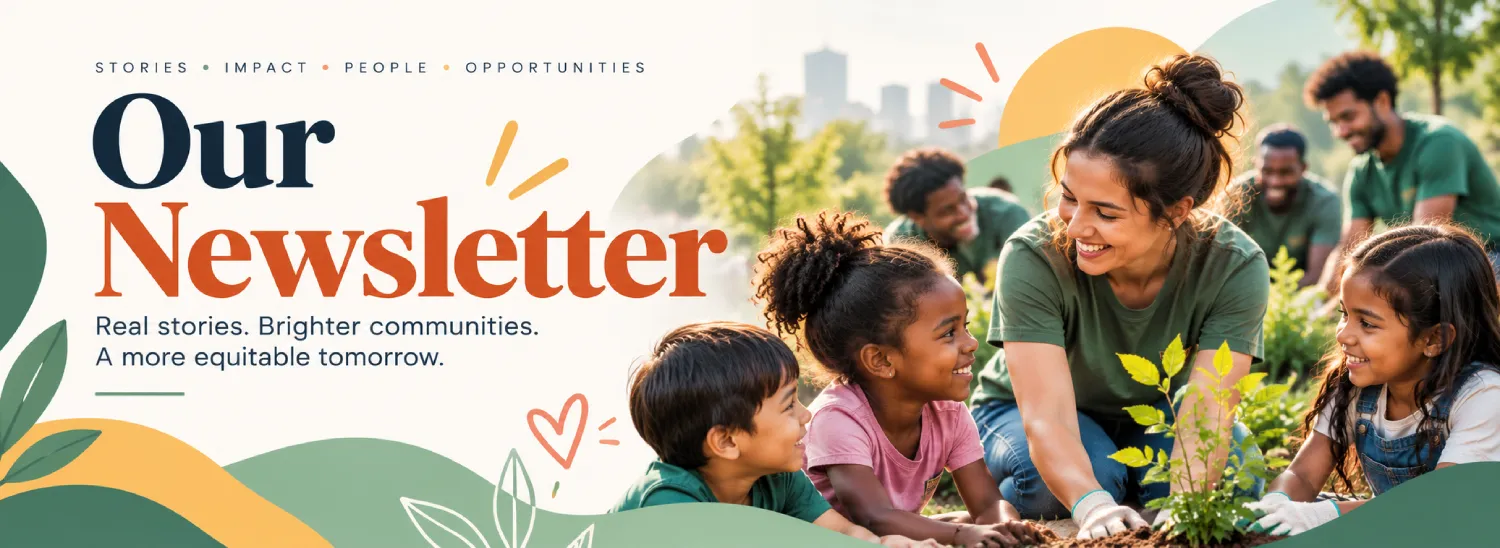
Email newsletter header
A consistent banner across every email so your newsletter is recognizable at a glance.
-
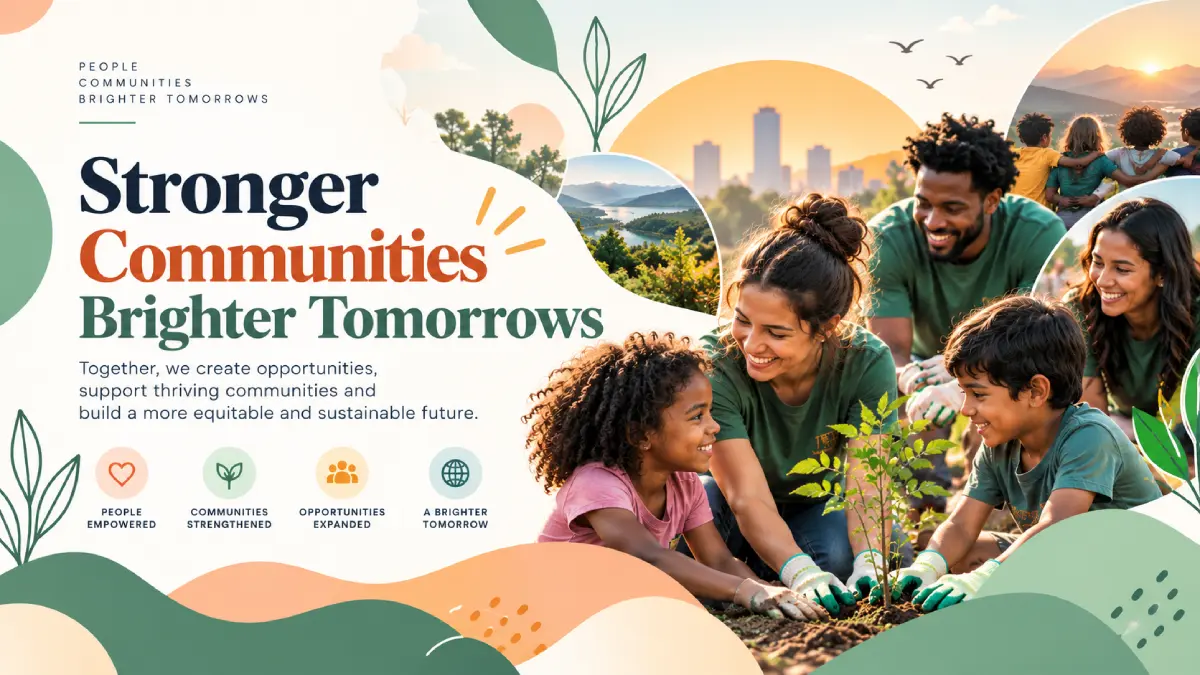
Facebook and LinkedIn cover images
Updated per campaign, but built from one locked template so the brand stays consistent.
-
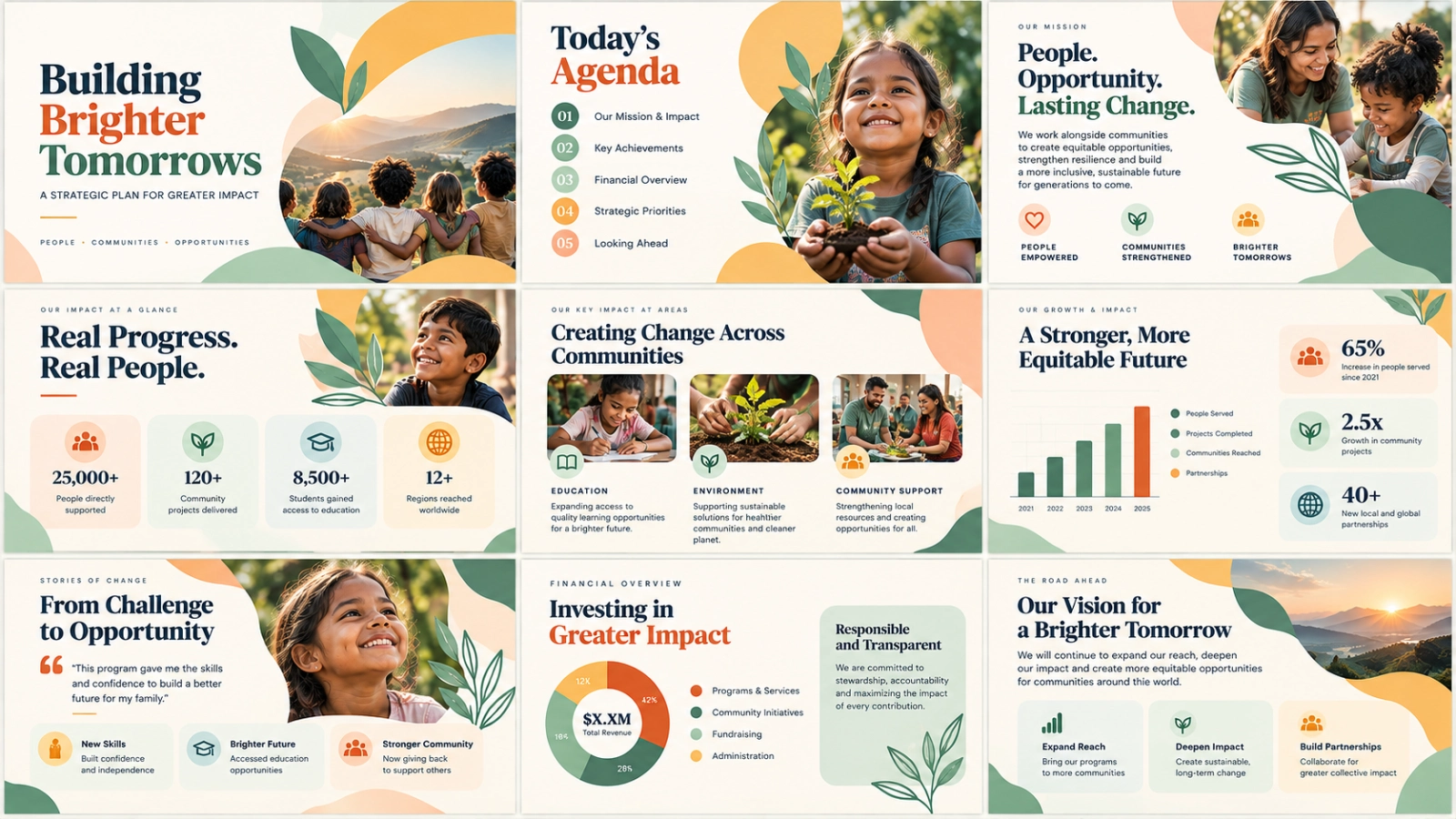
Board or pitch deck template
For funder meetings and internal presentations, built once with your brand colors and reused every quarter.
-
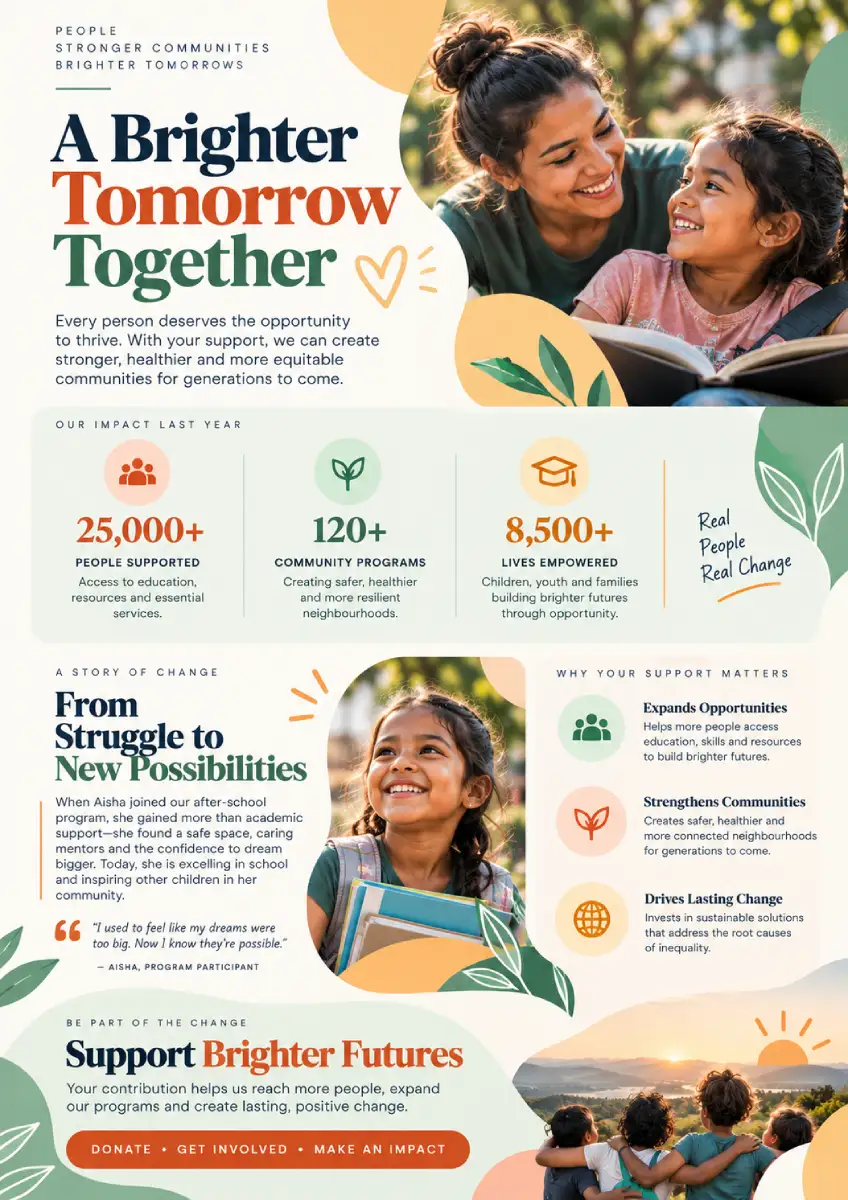
Case for support one-pager
The document a major donor or corporate partner actually reads before deciding to give.
-
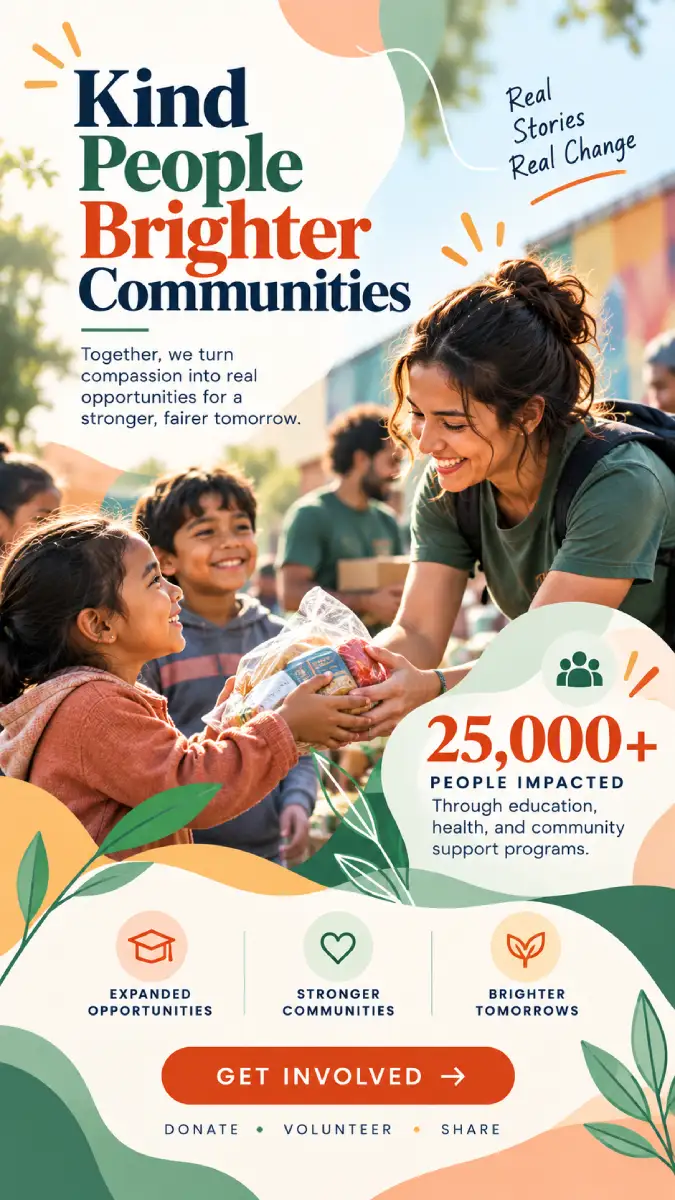
Short-form video template
A Reels or TikTok-ready template for quick program updates and donor spotlights, since video consistently outperforms static posts for engagement.
Build these as locked templates in a shared team folder, not one-off designs. That's the difference between Canva saving your team real time and Canva just being one more tool nobody has bandwidth to use properly.
Common Mistakes Nonprofits Make With Canva
-
Applying with mismatched documentation. A legal name on the application that doesn't exactly match your IRS letter is one of the most common reasons approval gets delayed.
-
Never setting up a Brand Kit. Skipping this step is why so many nonprofit social accounts look visually inconsistent even after getting Canva Pro.
-
Letting every team member design from scratch. Without shared templates, Canva Pro just becomes a slightly nicer version of the same slow, inconsistent process.
-
Forgetting to add every team member. The free tier covers up to 50 seats, but plenty of approved organisations only add two or three people and leave the rest of the team designing off-brand in whatever free tool they used before.
Want Your Visuals to Actually Reach Donors?
A strong template library only pays off once the right people are seeing it. At Orvador we can help make sure your Canva-built campaigns are reaching search and social audiences.
Get in touch with our team →
Getting your visuals right is step one. Turning that consistent brand into donors who actually find you online is the harder part. See how Orvador's NGO digital marketing services help nonprofits turn strong visuals into traffic, and traffic into supporters.